


An AI workspace is one place where you and your team work with AI. It brings together several AI models, your own context such as projects and files, tools such as web search and image creation, and the people you work with.
A standard chatbot gives you one model with limited tools. An AI workspace usually have multiple models, tools and remembers what your work is about and lets the whole team use it.
What an AI workspace includes
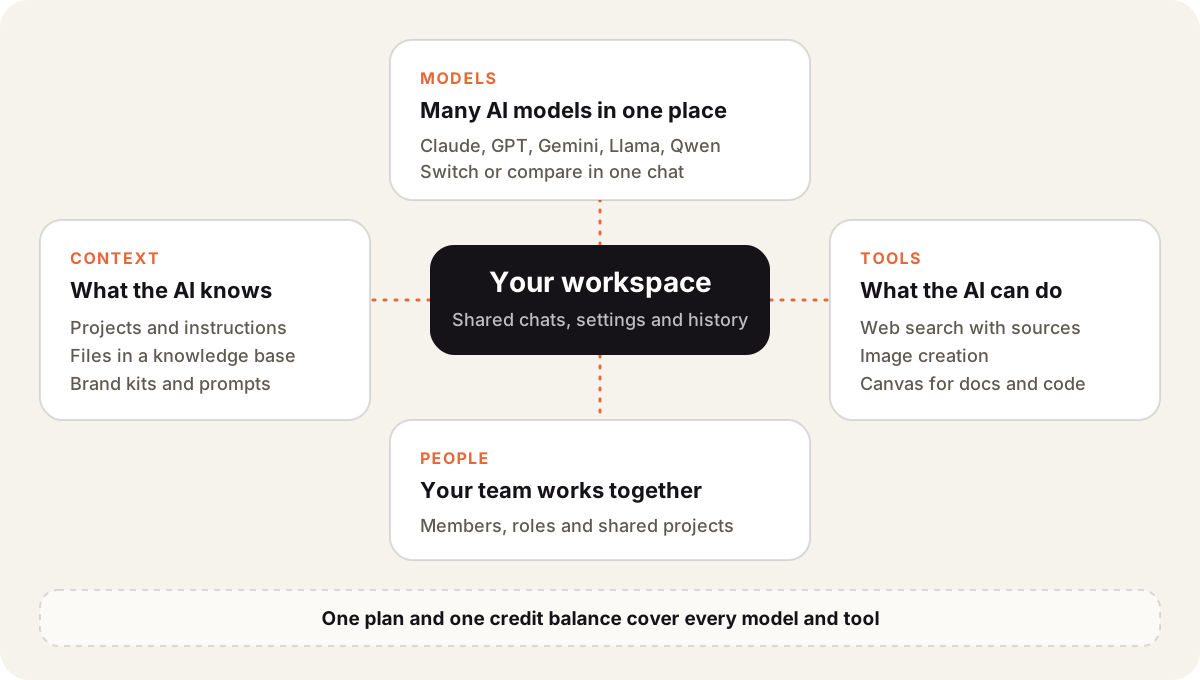
| Part | What it does | Example |
|---|---|---|
| Models | Lets you pick the right AI for each task | Claude for writing, GPT for reasoning |
| Context | Gives the AI your instructions and files | A project with a style guide and product docs |
| Tools | Lets the AI act beyond plain text | Web search, URL read, image creation |
| People | Lets a team share the same setup | Members working in shared projects |
The value comes from these parts working together. A model is more useful when it can read your files, search the web and follow your brand rules in the same chat.
AI workspace vs AI chatbot
| AI chatbot | AI workspace | |
|---|---|---|
| Models | Usually one vendor’s models | Many vendors in one place |
| Your files | Uploaded per chat | Kept in a library and in projects |
| Team use | Mostly personal | Shared workspaces with members |
| Billing | One subscription per app | One plan for every model |
If you pay for ChatGPT, Claude and Gemini separately, you are paying three times for three chat boxes that don’t share anything. A workspace replaces them with one.
An example in Sparkian
Sparkian is an AI workspace. I use it every day with 100+ models from OpenAI, Anthropic, Google and others. Almost everything the workspace offers sits behind the plus button in the chat box.
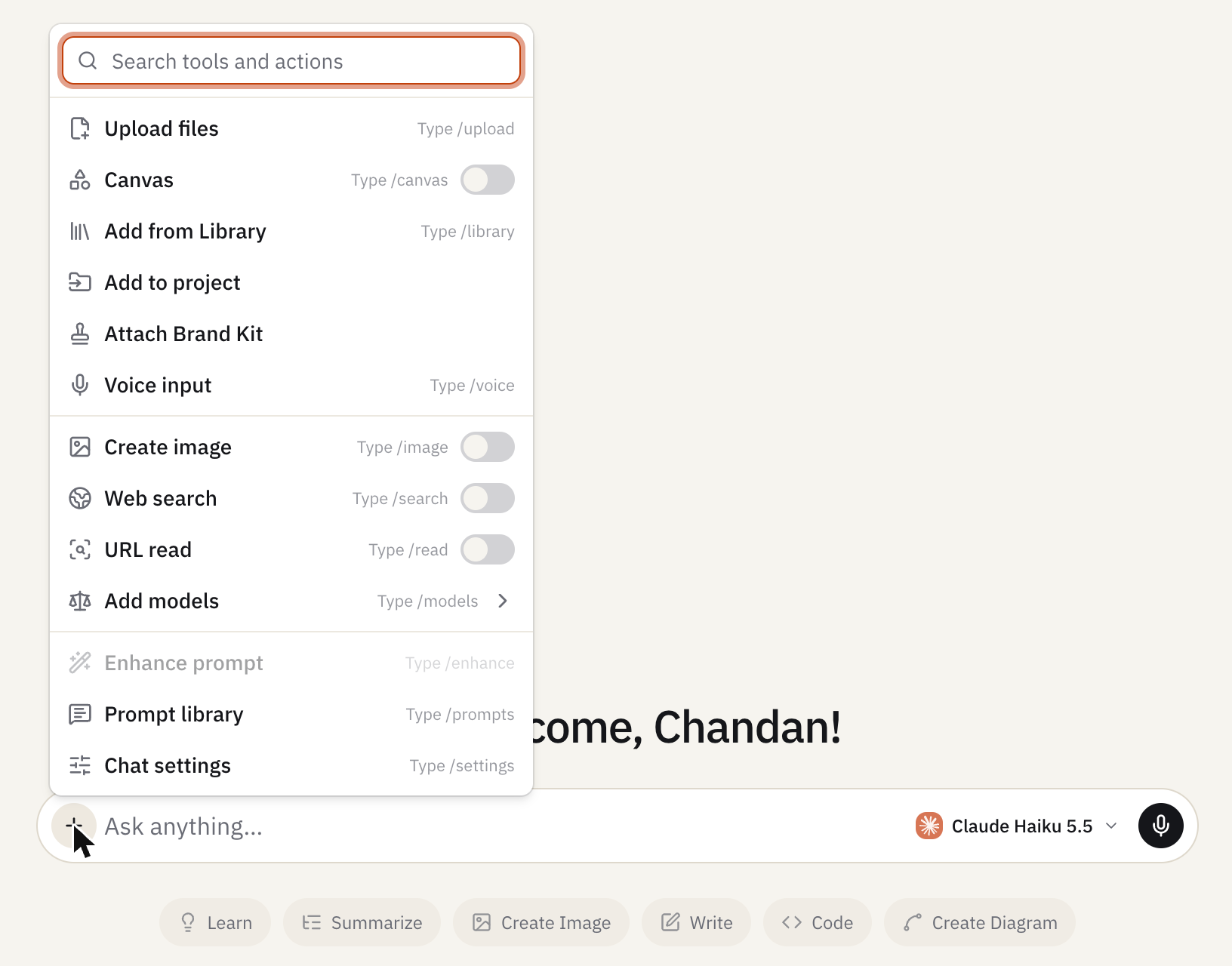
This is how I use each part.
- Library and projects. I keep reference files in the Library and group related chats in a project. The AI answers from those files instead of guessing.
- Brand Kit. I attach our brand rules so drafts follow the same voice and colors.
- Web search and URL read. The model reads current pages and cites them.
- Create image and Canvas. I create images and longer documents in the same chat.
- Add models. I compare answers with multi-model chat when the answer matters.
My team works in a shared workspace. Everyone sees the same projects and files, and one plan pays for all the models. You can see what each plan includes on the pricing page.
How to choose an AI workspace
- Model choice. Check which vendors and models it offers, and how fast it adds new ones.
- Your data. Check where files are stored and who in the team can see them.
- Team features. Look for shared projects, roles and a single bill.
- Real cost. Compare the plan price with what you pay for separate AI subscriptions today.
Start with your daily tasks. Run them in the workspace for a week and see whether you still need the other apps.